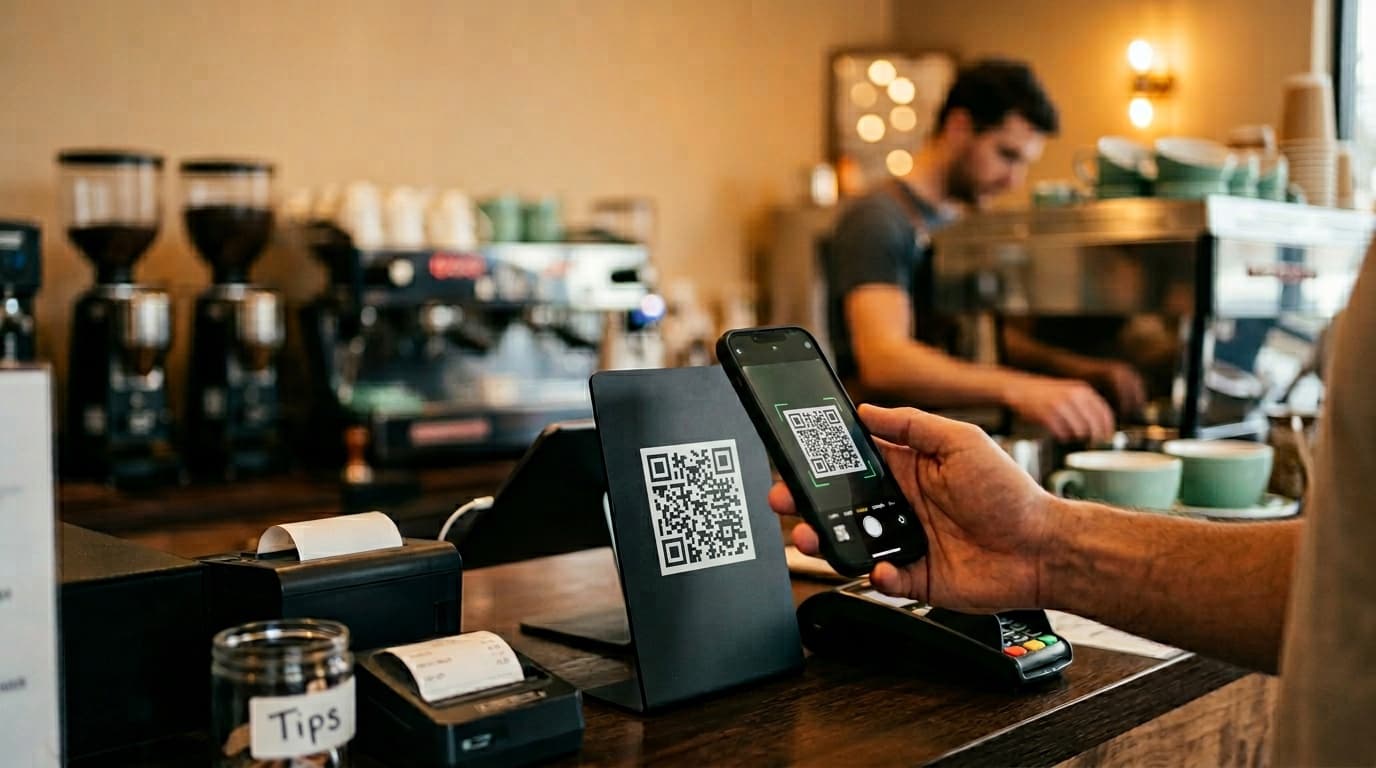
Verbally asking customers for reviews is awkward, and email requests go straight to spam. But a QR code placed on your table, counter, or receipt? That's frictionless, quiet, and it works.
This guide walks you through creating a Google review QR code from scratch in under 10 minutes — no tech skills required. We'll cover the free tools, the design tweaks that get more scans, the placement spots that matter most, and why the highest-performing local businesses don't stop at a basic QR code.
Why a QR Code Changes the Game for Google Reviews
The gap between a happy customer and a published review has nothing to do with willingness. Most satisfied customers mean to leave a review but forget by the time they get home, can't find your listing, or simply don't know where to start.
A QR code eliminates every one of those obstacles. One scan opens the Google review form directly — no typing, no searching, no friction. Businesses with a visible QR code consistently collect 2–3× more reviews than those relying on verbal requests alone.
Step 1: Get Your Google Review Link
Before you create the QR code, you need the direct link that opens your Google review form. Here's how to get it:
- Sign in to Google Business Profile at business.google.com
- From your dashboard, click "Get more reviews" (or "Ask for reviews")
- Copy the short link Google generates
The link typically looks like g.page/r/[your-identifier]/review. This is the URL you'll encode into your QR code.
Important: Always test the link on your phone before generating the QR code. It should open directly to the star-rating screen — not your general business profile page. If it takes customers to the profile instead, scroll down in your Business Profile dashboard to find the "Share review form" option.
Step 2: Generate Your QR Code (Free Tools)
Several free tools can generate a QR code in seconds:
- QR Code Generator (qr-code-generator.com) — Paste your link, click generate, download PNG or SVG
- Canva — Has a built-in QR code tool inside its flyer and table tent templates
- Google Chrome — Click the share icon in the address bar and select "Create QR Code"
For a basic QR code, any of these tools will do. Paste your Google review link, generate, download.
File format tip: Always download in SVG or high-resolution PNG (minimum 1,000×1,000 pixels) to keep the code crisp when printed at any size.
Step 3: Design Your QR Code to Maximize Scans
A generic black-and-white QR code blends into the background. A few simple design choices can double your scan rate.
Add your logo to the center
Most QR code generators let you embed a logo inside the code. This immediately signals to customers that it's your QR code — not a random square they should ignore. In a world where people are rightly cautious about unknown QR codes, your logo removes that hesitation entirely.
Match your brand colors
Your QR code can use your brand palette. Just maintain strong contrast between the dark module color and the background — a light QR code on a white table tent won't scan reliably. When in doubt, keep the modules dark and the background light.
Add a clear call to action
The QR code alone doesn't tell customers what happens when they scan it. Always pair it with a short, direct message:
- "Scan to leave us a review ⭐"
- "Happy with your visit? Tell Google in 2 minutes"
- "Your review helps us grow — thank you"
Without a call to action, most customers walk past without scanning. They simply don't know what the QR code does.
Step 4: Print and Place Your QR Code Strategically
Placement determines how many people see and use your QR code. The difference between a QR code that generates 5 reviews a month and one that generates 50 is almost entirely about where it's positioned.
Top-performing placements
Table tents and counter displays
This is the #1 placement for restaurants, cafés, and bars. When a customer is waiting — for their order, their bill, or their coffee to cool — they have a natural window of attention. A folded table card with your QR code on one side and your brand on the other is the most effective physical format in food and beverage settings.
The bill or receipt
The moment of payment is golden: the customer has just completed their experience and, if everything went well, is in a positive frame of mind. A QR code sticker on the bill folder, or text printed directly on the receipt, captures this exact window before the customer walks out the door.
Near the exit or front door
A small A5 or A4 poster by the door catches every customer on their way out. This placement works especially well for retail shops, salons, gyms, and clinics — anywhere customers walk through a defined exit point.
On menus, packaging, and takeaway bags
If your menus are laminated or your takeaway bags are branded, add the QR code. Every customer touchpoint is a review opportunity that costs nothing extra once the design is done.
What to avoid
- Placing it too high on a wall (out of comfortable reach for a phone)
- Printing it smaller than 2.5 cm × 2.5 cm (scanning becomes unreliable)
- Putting it in low-light spots (phone cameras struggle in dark corners)
The Limits of a Basic QR Code
A QR code that links directly to your Google review form works — but it has a real conversion problem.
When a customer arrives on the Google review form cold — no context, no incentive, no particular reason to invest two minutes — only about 5–10% of those who scanned will complete a review. The rest close the app and move on.
There's also no filtering. The dissatisfied customer and the delighted customer access the same form. Some negative reviews that could have been handled privately end up public because there was no pre-qualification step.
And once the customer has scanned and optionally reviewed, the interaction is over. Nothing pulls them back sooner.
The Gamification Upgrade
Here's where top-performing local businesses pull ahead. Instead of pointing their QR code directly to Google, they route it through a digital fortune wheel:
- Customer scans the QR code
- Customer leaves a Google review
- Customer spins the wheel and wins a prize (free coffee, discount, dessert, voucher...)
- Customer comes back in to redeem their prize
This one change drives conversion rates of 20–30% of scans into completed reviews — compared to the 5–10% you'd get with a basic QR code. The prize creates a genuine reason to scan, a genuine reason to complete the review, and a genuine reason to return.
That's the foundation of Ludofy: a QR code connected to a personalized fortune wheel, branded with your logo and colors, with prizes you define. Setup takes 30 minutes. The first reviews start arriving the same day.
Where a basic QR code might generate 5–15 reviews per month, businesses using Ludofy average 150–200.
The Bottom Line
Creating a Google review QR code is the right first move — it's free, it takes minutes, and it beats verbal requests every time. But if you're serious about building a 4.8+ rating and hundreds of reviews in a matter of weeks, a basic QR code is only the beginning.
The businesses that dominate local Google search results aren't just asking customers for reviews. They're giving customers a concrete reason to do it right now, and something worth coming back for. That's what turns a review collection strategy from an afterthought into a genuine competitive advantage.